Close-up of Vikash's eyes behind his favourite dark-rimmed glasses About Roy

Can I expand ISCSI HBA connected to XenServer 6.0.2 online ?

Yes you can and CTX 120865 works like a charm. Make sure from the storage system the lun has been expanded to the desire size. Now ensure all the VM's on that lun is power off to be on safer side.  Below example where SR is expanded from 1 TB to 2TB

1. Run the xe sr-list and note down the UUID for the SR as shown below

Can I expand ISCSI HBA connected to XenServer 6.0.2 online ? — screenshot 1

2. Now perform the following steps as shown below. Unplug/Replug/resize/rescan

Can I expand ISCSI HBA connected to XenServer 6.0.2 online ? — screenshot 2

3. Xencenter will show the correct size of SR now. Power on all the VM’s

Can I expand ISCSI HBA connected to XenServer 6.0.2 online ? — screenshot 3

Hidden Ghost Network Driver on VM running over XenServer

When the network interface is removed or VLAN is changed this can create ghost network driver. When you try to IP the nic it will throw error message "Multiple Default Gateways are intended to provide redundancy ". These are common with VM's running on different hypervisor . 

This can be removed by setting nonpresent devices to show. Run exactly as shown belowHidden Ghost Network Driver on VM running over XenServer — screenshot 1

Check "Show hidden devices" and this will show all the ghost nic driver . Uninstall and  reboot the VM

Hidden Ghost Network Driver on VM running over XenServer — screenshot 2

Citrix Provisioning Service (PVS) and Windows 7 KMS- A जुगलबंधी

जुगलबंधी- means Combination or entwined twins Source wiki. If you want PDF format then click Here

Finally I left my work early and decided to author this article as I myself struggle which is not my domain :)  Much discussed and written several times , tons of blog and articles are  available on Internet so why the hell Vikash decided to blog and waste his time. I just wanted to clarify few points with which people are still confused .

1. Should I uses KMS or MKS when using Citrix Provisioning Service ?

2. How many client do I need?

3. Will office 2010 which goes into base image is also supported?

In the below example I have used PVS 6.1 and XD 5.6 along with windows 7

So what provisioning service (PVS) does that KMS become so difficult to implement. Well PVS provide read only image to multiple targets. What it means , once image (Windows 7 or windows 2008) is provided it will be in read mode. So after reboot all the change will be vanish.

Situation: You have VDI initiative going on and as per best practice KMS is recommended for all the image since it will be streamed via PVS. So these will first KMS deployment in the environment which will be service office 2010 and windows7 as well as windows 2008.

What kind of KMS should I go with Windows 2008R2/Windows7? It does matter because you cannot use windows7 KMS to activate windows 2008.

Now the question raised do we need 25 virtual or 25 physical devices to activate or else it will throw error 0xC004F038

Citrix Provisioning Service (PVS) and Windows 7 KMS- A जुगलबंधी — screenshot 1

The answer is you need just 25 PVS streamed VM which can be destroyed latter if you need less than that and it is KMS count to reach 25 and above.

From MS link

Citrix Provisioning Service (PVS) and Windows 7 KMS- A जुगलबंधी — screenshot 2

Installation of KMS is very easy . Download the KMS from MS and activate the OS on which it has been installed. Always use KMS key while activating as listed here

Citrix Provisioning Service (PVS) and Windows 7 KMS- A जुगलबंधी — screenshot 3

I have used following version of activation tool

Citrix Provisioning Service (PVS) and Windows 7 KMS- A जुगलबंधी — screenshot 4

Make sure the DNS TCP has this SRV record for KMS server. This may need to be created manually with highlighted setting. Make sure firewall is either made ON or necessary exception is added.

Citrix Provisioning Service (PVS) and Windows 7 KMS- A जुगलबंधी — screenshot 5

Now answering other question: Do I need windows 7 professional/Enterprise /Ultimate. So answer it does not matter for PVS which edition you are running on VM.

How to proceed :

1. Install OS and everything which is required on base OS.

2. Capture the OS using imaging wizard and make sure it becomes your golden image.

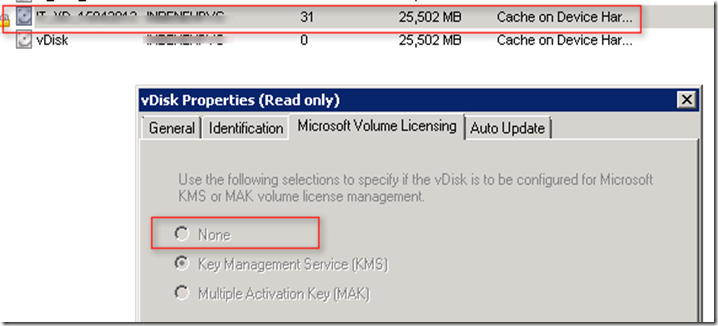
3. Now boot the image in private mode and make sure following is selected under private image
Citrix Provisioning Service (PVS) and Windows 7 KMS- A जुगलबंधी — screenshot 6

4. Now make sure you rearm the OS by running following command and when it prompt to reboot shut down the OS

Citrix Provisioning Service (PVS) and Windows 7 KMS- A जुगलबंधी — screenshot 7

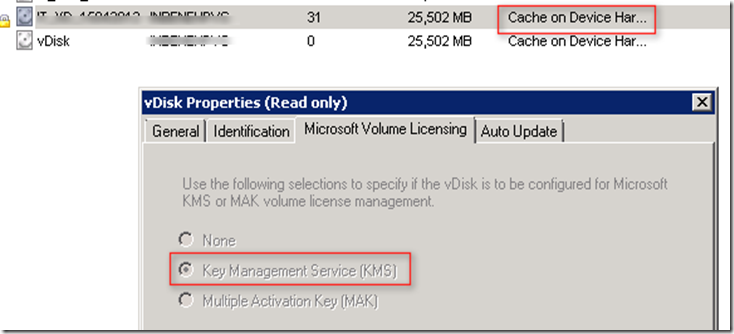
5. Once target is shut down make sure you choose KMS under vDisk properties and mount it as standard
Citrix Provisioning Service (PVS) and Windows 7 KMS- A जुगलबंधी — screenshot 8

6. Once image is in standard mode , create atleast 30 machine using XenDesktop setup wizard. Login to any machine and run slmgr /dlv and it should show up like this. This mean machine is getting unique CMID . If not then grace period will be something different which I will explain latter.

Citrix Provisioning Service (PVS) and Windows 7 KMS- A जुगलबंधी — screenshot 9

7. While you run the same command slmgr /dlv on KMS server you will see the count starting from 1 and slowly increase. This counter increase over 60sec. So patience .

Citrix Provisioning Service (PVS) and Windows 7 KMS- A जुगलबंधी — screenshot 10

Add all the machine into VAMT console .

Citrix Provisioning Service (PVS) and Windows 7 KMS- A जुगलबंधी — screenshot 11

Once all the machine added update the status of machine. This scan PC using WMI for install MS product .If office is installed it will update the same

Citrix Provisioning Service (PVS) and Windows 7 KMS- A जुगलबंधी — screenshot 12

This will show all the office and windows 7 product

Citrix Provisioning Service (PVS) and Windows 7 KMS- A जुगलबंधी — screenshot 13

Now we need to activate all the product office as well as

Citrix Provisioning Service (PVS) and Windows 7 KMS- A जुगलबंधी — screenshot 14

If counter is reached to above 25 then for sure all the OS instance will be activated.

Citrix Provisioning Service (PVS) and Windows 7 KMS- A जुगलबंधी — screenshot 15

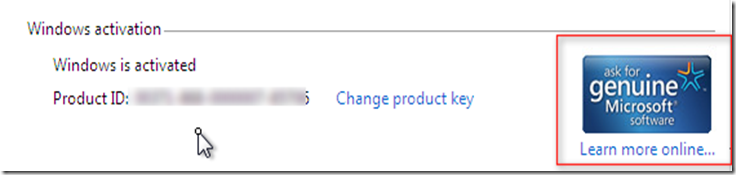
And you will see this message under windows properties
Citrix Provisioning Service (PVS) and Windows 7 KMS- A जुगलबंधी — screenshot 16

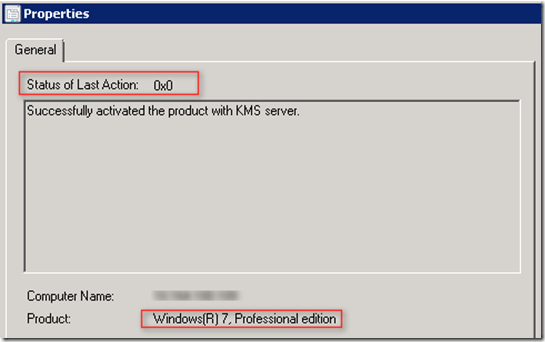
And on KMS server this is what you got
Citrix Provisioning Service (PVS) and Windows 7 KMS- A जुगलबंधी — screenshot 17

There is no separate setting for Office 2010 and it just worked without any count for 25 or anything :)

Citrix Provisioning Service (PVS) and Windows 7 KMS- A जुगलबंधी — screenshot 18 '


TROUBLESHOOTING:

If the counter is not increasing then you need to check if all the CMID are unique or not .If not then following blog from askcore

Citrix Provisioning Service (PVS) and Windows 7 KMS- A जुगलबंधी — screenshot 19

Also make sure you are using correct product key which is listed here.

Make sure you follow CTX128276 line by line . I spend two days because I did not follow following highlight
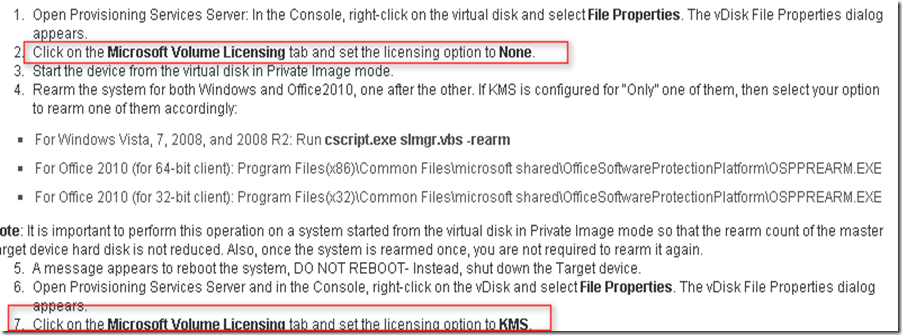
Citrix Provisioning Service (PVS) and Windows 7 KMS- A जुगलबंधी — screenshot 20

XenDesktop 5.6 PeakbufferSize and offpeakbuffer size reveled : Why only 3 desktop is powered ON

You may have 10 desktop in a desktop group but even after defining peak hours for 24 hour , desktop does not get into ready mode. These are personal desktop ,streamed pooled with PVD.

XenDesktop 5.6 PeakbufferSize and offpeakbuffer size reveled : Why only 3 desktop is powered ON — screenshot 1

Still we have only 3 desktop powered ON

XenDesktop 5.6 PeakbufferSize and offpeakbuffer size reveled : Why only 3 desktop is powered ON — screenshot 2

But if you see properties of Shared desktop you can find that , you have an option to increase or decrease the number of desktop

XenDesktop 5.6 PeakbufferSize and offpeakbuffer size reveled : Why only 3 desktop is powered ON — screenshot 3

This is how the properties for desktop group look like

XenDesktop 5.6 PeakbufferSize and offpeakbuffer size reveled : Why only 3 desktop is powered ON — screenshot 4

This is by nature  “A buffer is an extra, standby set of unallocated machines that are turned on, ready for users to connect. For shared desktop groups and unallocated machines in private desktop groups, desktops in the buffer are turned on when the number of machines in the pool drops below the threshold set by the buffer size. This is a percentage of the desktop group size (default is ten percent). For large desktop groups, a significant number of machines might therefore be turned on when the threshold is exceeded”

And to check this you can run following command

XenDesktop 5.6 PeakbufferSize and offpeakbuffer size reveled : Why only 3 desktop is powered ON — screenshot 5

To change it you can just run the following command

Set-brokerdesktopgroup -name <insert desktop group name> -offpeakbuffersizepercent 100 -peakbuffersizepercent 100

Protocol Driver Error and SSL Error 29 : Proxy Access Denied

While launching desktop via AGEE , I started getting "Protocol error "

Protocol Driver Error and SSL Error 29 : Proxy Access Denied — screenshot 1 

Under Virtual Server STA (DDC) were showing up and running

Protocol Driver Error and SSL Error 29 : Proxy Access Denied — screenshot 2

On web interface setting "Secure Access Setting"  all the  STA has been listed .

Protocol Driver Error and SSL Error 29 : Proxy Access Denied — screenshot 3

Desktop shows session has been initiated

Protocol Driver Error and SSL Error 29 : Proxy Access Denied — screenshot 4

After  un-checking  "Enable Session reliability " we gone ahead with Protocol driver error message

Protocol Driver Error and SSL Error 29 : Proxy Access Denied — screenshot 5

But now we started getting SSL 29 error . Though we were launching XenDesktop we were seeing XenApp related error.

Protocol Driver Error and SSL Error 29 : Proxy Access Denied — screenshot 6

From NetScaler we tried pining box and found box were reachable . But found that routing were undefined. We created IP subnet and then defined the VLAN .This allowed to launch the XenDesktop.