Close-up of Vikash's eyes behind his favourite dark-rimmed glasses About Roy

This operation can not be performed because the specific virtual disk could not be found

You will get the error message while starting the VM on XenServer "This operation can not be performed because the specific virtual disk could not be found"

This operation can not be performed because the specific virtual disk could not be found — screenshot 1

After ejecting the mounted ISO VM booted normally

This operation can not be performed because the specific virtual disk could not be found — screenshot 2

Citrix Personal vDisk (565) dynamic expansion

Citrix has released latest version of PVD (Personal vDisk ) 565 which support dynamic expansion . What does it mean to you? Say you have created PVD of 10GB and for some reason you ran out of space

Citrix Personal vDisk (565) dynamic expansion — screenshot 1

Space distribution is shown below

Citrix Personal vDisk (565) dynamic expansion — screenshot 2

Now lets expand this P: drive from 10GB  to 15GB

Citrix Personal vDisk (565) dynamic expansion — screenshot 3

And this is how space distribution changes

Citrix Personal vDisk (565) dynamic expansion — screenshot 4 

Now say C: drive is full

Citrix Personal vDisk (565) dynamic expansion — screenshot 5

Reboot  the VM and C: drive is expanded automatically

Citrix Personal vDisk (565) dynamic expansion — screenshot 6 

This has been explained here

XenApp shadowing does not logoff user session

When helpdesk team close the shadowing session ICA shadowing session does not logoff from the server. Because of this reason no more shadowing will be allowed on this server by same users. Let's find out how does it happen . I am shadowing "citrix.test" using user "citrix.test" . This is what shown under App control center

XenApp shadowing does not logoff user session — screenshot 1

When this session is terminated via Ctrl+ *
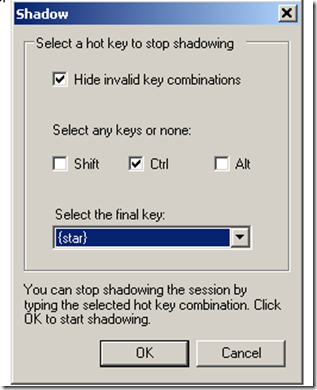
XenApp shadowing does not logoff user session — screenshot 2

This will still be shown under App Center as disconnected

XenApp shadowing does not logoff user session — screenshot 3

This disconnected session does not logoff  shadowing session gracefully. After looking at task manager it has been found that couple of process which was still running with PID
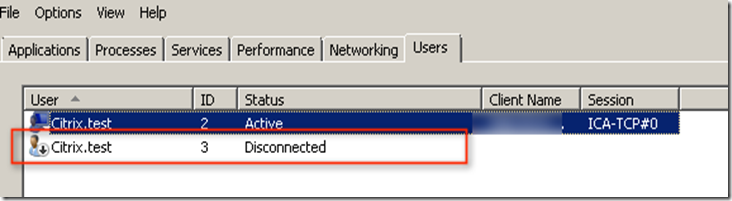
XenApp shadowing does not logoff user session — screenshot 4

we were not able to kill Symantec Service Framework service even using local admin or domain admin
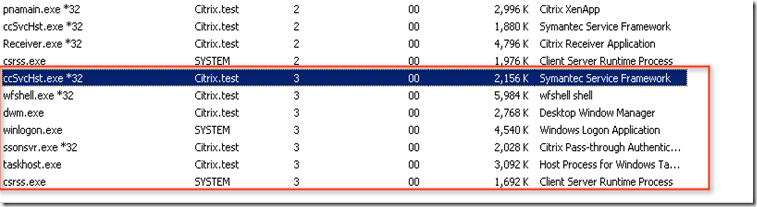
XenApp shadowing does not logoff user session — screenshot 5

Created GPO and deliver following key using "Create" option

HKEY_LOCAL_MACHINE\SYSTEM\CurrentControlSet\Control\Citrix\wfshell\TWI

Value Name:LogoffCheckSysModules
Type:
REG_SZ
String: ccSvcHst.exe

XenApp shadowing does not logoff user session — screenshot 6

as explained in CTX891671. After this registry changes Ctrl + * use to close the shadowing session.

How to set alias for Desktop Director URL

When desktop director is installed , it can be accessed via http://<server name >/Desktopdirector  . But DNS will not allow you to create alias , so you will be always need to type http://<server name >/Desktopdirector  . In order to get access via just server ie.  http://<Servername> we need to make change in IIS or create Default.htm file under wwwroot folder. Content of Default.htm will be  
Other way of doing is to redirect http request from http://<servername>/desktopdirector to http://<servername> from IIS
How to set alias for Desktop Director URL — screenshot 1

ClientName variable as hostname via Citrix AGEE

When hosted desktop is launch via AGEE it display the host name with something like WI_  . This makes some of the application behave weird which uses this variable. Mainly some CRM application which uses this hostname . This can be verified via running set command.

ClientName variable as hostname via Citrix AGEE — screenshot 1 

To fix this small change on WI can help . Uncheck the below options

ClientName variable as hostname via Citrix AGEE — screenshot 2

And after that when application like hosted shared desktop is launched it display the correct CLIENTNAME="workstationname"

ClientName variable as hostname via Citrix AGEE — screenshot 3