Close-up of Vikash's eyes behind his favourite dark-rimmed glasses About Roy

Error with XenServer: SR backend failed to complete the operation

While creating SR on Xen Server 5.5 U2 with backend storage as MD3000i , I was getting following error message

[Screenshot no longer available]

Troubleshooting steps:

1. I unchecked MP option on host and tried again it was able to see all the lun while doing lun scan

[Screenshot no longer available]

2. I then removed the host from pool and tried enabling MP and see if that worked but while scanning the lun it was still throwing same error message

[Screenshot no longer available]

3. Reconfigure all the virtual disk on MD3000i and check all the setting. Finally we found that on one controller if we change the prefer path then I am able to create SR or else it throws error

[Screenshot no longer available]

4. I had other setup with same storage as background. I moved this host into separate pool and checked the MP functionality. With this host I also copied /etc/multipath.conf file from the host which was working . I then restarted multipath /etc/init.d/multipathd restart

This worked great on different pool

5. Finally I updated multipath.conf on all the Xenhost and restarted multipath demon

6. From the controller side I have disabled IP V6 setting on one of the controller which was enabled

[Screenshot no longer available]

Finally with above two changes all the SR had MP enabled

[Screenshot no longer available]

XenServer: If UI seems stuck or invalid state

The XS API agent/service can be restarted without affecting VMs that are running. This service may need to be restarted after having manually configured host parameters i.e. Management NIC, etc.

•XS Agent runs on top Xen Hypervisor API and XenStore

#service xapi restart

While adding host in XS pool : The hosts in this pool are not homegeneous

I was getting following error while joining XS to the Pool

[Screenshot no longer available]

Went to XECONSOLE and then selected following and it will give you warning

[Screenshot no longer available]

Then it will ask you for pool master IP and root credential . Once supplied it will ask to confirm , F8 to confirm

[Screenshot no longer available]

This will give successful message . Host will appear in correct pool

Switch to RDP on VM on XC disabled

If you see the VM’s has “Switch to Remote Desktop” grayed as below


[Screenshot no longer available]


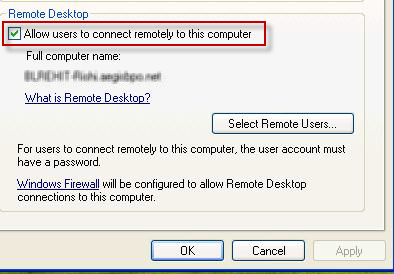
Then Login to OS and disable and enable RDP setting and reboot the VM


[Screenshot no longer available]


If this also does not help then under following location

[Screenshot no longer available]


Delete the folder called “XenCenter”


If none of the above work then uninstall and reinstall XC


Switch to RDP Mode For VM on XenCenter Console is disabled

If you see the VM’s has “Switch to Remote Desktop” grayed as below

Switch to RDP Mode For VM on XenCenter Console is disabled — screenshot 1

Then Login to OS and disable and enable RDP setting and reboot the VM

Switch to RDP Mode For VM on XenCenter Console is disabled — screenshot 2

Switch to RDP Mode For VM on XenCenter Console is disabled — screenshot 3

If this also does not help then under following location . Delete the folder called “XenCenter”   If none of the above work then uninstall and reinstall XC